.png)
Fluency Report
What is this report about?
The Fluency Report provides a clear, color-coded overview of class and individual progress across the four fluency domains: Addition, Subtraction, Multiplication, and Division. The report has two views: the Fluency Class Report, which gives you a class-wide overview, and the Fluency Student Report, which drills down into one student's fact-level progress.
With the current version of the report, you can:
- See which students have mastered key areas
- Identify students who are still in progress
- Spot those who may need additional support or intervention
This report allows you to quickly assess class-wide performance and make informed instructional decisions.
Where can I find the Fluency Report?
You can find the Fluency Class Report in the Reports section. To access the Fluency Class Report, first click on the ‘Reports’ button on your teacher dashboard. This section consists of eight tabs: Weekly Dashboard, Skills, Fluency, Yearly Dashboard, Assessment, Progress Report, Activity Stream, and Parent Report.

Understanding the report layout

The report displays all students in your class in a table format with the following columns:
- Student name – with an expand arrow to see detailed progress
- Addition, Subtraction, Multiplication, Division — color-coded progress bars for each domain
- Link to Student Report
At the top of the report, you’ll see students who are already working with Fluency Practice.
In this part of the report, students are sorted based on their progress:
- Students with a higher overall completion appear at the top.
- If students have the same completion percentage, those with a higher proportion of Mastered progress are placed higher.
Remaining students will be listed in one of two sections at the bottom of the report:
- Fluency is currently not available — these students have completed the Placement Test but haven’t progressed far enough in the core curriculum to begin Fluency Practice yet.
When does Fluency Practice first appear? Fluency Practice unlocks automatically once a student meets all of the following conditions:
- They are enrolled in Grades 1–5 (students in other grades won't see it)
- They have spent at least 15 minutes actively working on educational tasks
- They have completed at least 2 tasks
One exception: if a student in grades 1–4 is placed in PK–K based on their Placement Test, Fluency Practice will appear only after they reach Grade K, Module 4, Topic D.
- Placement Test to be done — these students haven’t completed the Placement Test yet, so Fluency Practice hasn’t started.
Students in the “Fluency is currently not available” and “Placement Test to be done” sections are sorted in alphabetical order.
As soon as students meet the required conditions, they will automatically move into the main section of the report and begin Fluency Practice.
What do the colors and visual indicators mean?
Colors in the progress bars

Each domain shows a progress bar divided into three colors:
- Green — facts the student has fully mastered (answered correctly under timed conditions)
- Yellow — facts currently in progress (the student is working on them but hasn't mastered them yet)
- Gray — facts the student hasn't started yet
Understanding how Fluency topics are assigned and displayed
If a student starts Fluency Practice at a higher level in the curriculum, they may not see all Addition or Subtraction topics. In this case, earlier topics can appear as already mastered.
Additionally, if a student begins Fluency in the middle of an Addition or Subtraction sequence, earlier topics are automatically marked as mastered once they complete their current one. This reflects the cumulative nature of these domains – mastering more advanced skills implies confidence with the foundational ones.
Note: This automatic backfill applies to Addition and Subtraction only.
Visual indicators

Visual indicators make it easy to interpret key alerts at a glance:
- Red exclamation mark – the student is experiencing fluency difficulties (1 or more struggle facts within a topic).
A Struggle Fact is a math fact that a student has had significant difficulty with. This includes facts where the student has made repeated errors or spent considerable time without achieving mastery.
- Red clock – the student hasn’t accessed Fluency Practice for 3 weeks or more.
Filtering for students who need attention

Use the "Show only intervention needed" checkbox at the top of the report to display only students who:
- Have 4 or more Struggle Facts in at least one topic, or
- Haven't been reaching the weekly target on the core curriculum for 3 or more weeks (which means they haven't been receiving Fluency Practice)
What kind of data can a teacher get for an individual student from the Fluency Report?

1. The student is experiencing fluency difficulties (1 or more Struggle Facts within a topic).
2. By clicking the expand arrow, you can see a breakdown by topic within each domain.
3. In the Addition domain, some facts are mastered, some are in progress, and some haven't been started yet.
4. In the Subtraction domain, some facts are mastered, some are in progress, and some haven't been started yet.
5. The student hasn't started the Multiplication domain yet.
6. The student hasn't started the Division domain yet.
7. Click to open Student Report.
8. The student has 1 or more Struggle Facts within this domain.
9. The student has mastered all the facts in the topic Addition to 10.
10. The student is actively working on most facts in this topic and has 10 Struggle Facts.
11. The student hasn’t started working on this topic yet.
The Fluency Class Report is great for spotting who needs support and roughly where — but to understand exactly which facts are involved, what kind of difficulty the student is having (speed or accuracy), and what mistake they keep making, you'll need to access their individual Student Report.
Fluency Student Report
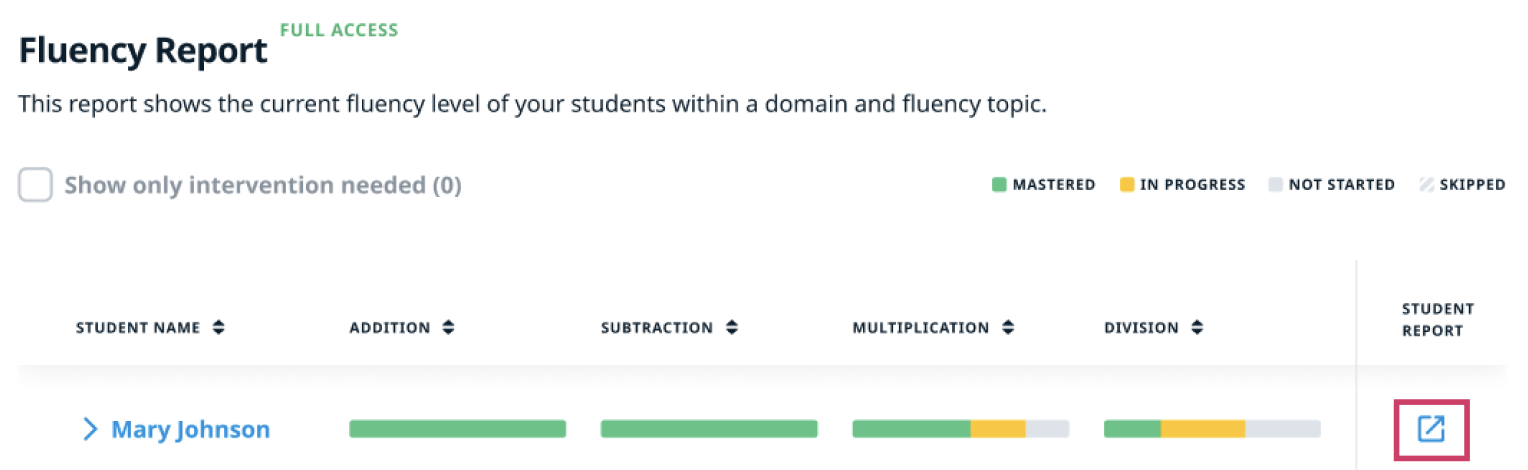
The Fluency Report is enhanced with more detailed, student-level insights to support deeper analysis and more targeted instruction. You can access the Fluency Student Report in three ways:
- From the fluency tab in the Student Report

2. From the Fluency Report, by clicking the Student Report expand icon
3. By clicking a struggle fact (in the Student dropdown view in the Fluency Class Report):
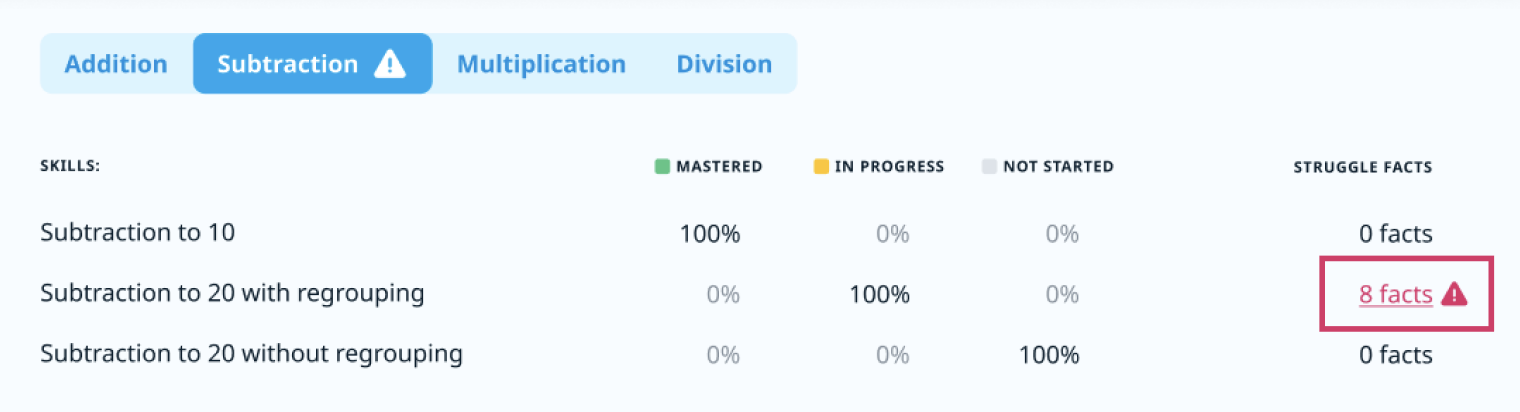
This part of the report offers a detailed, fact-level view of one student’s progress through the fluency trajectory. It’s organized by fluency domain tabs (Addition, Subtraction, Multiplication, and Division).
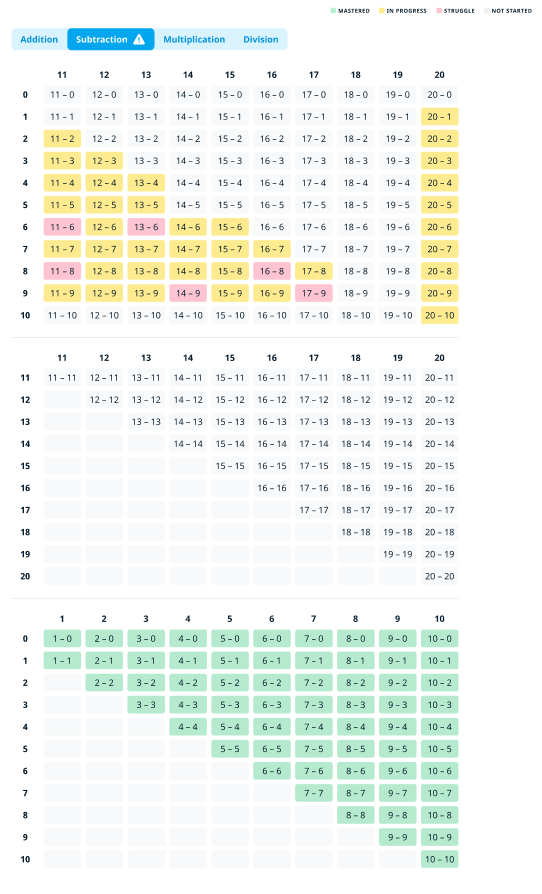
Each domain tab consists of a Math Fact table.
How are the tables organized?
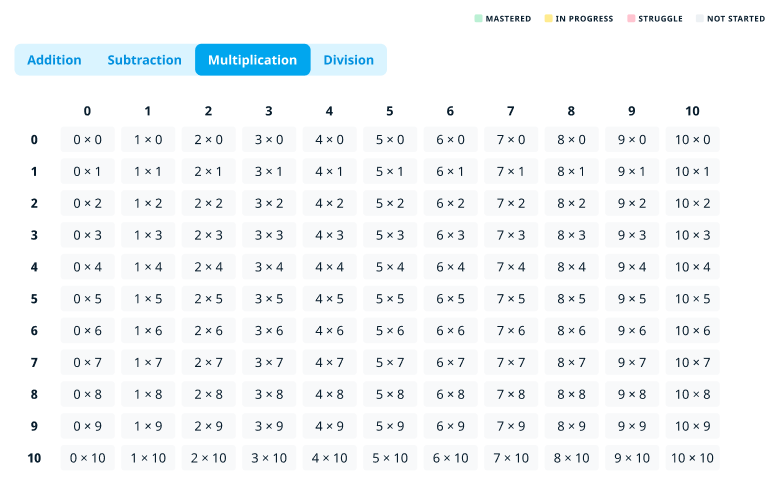
- The top row lists the first number in the Math fact (A).
- The left column lists the second number (B).
- Each cell shows the fact where that row and column meet, in the format A [operation] B.
Because order matters, facts like 3 × 5 and 5 × 3 are treated — and shown — as two separate facts, each with its own status.
Smaller domains (Multiplication, Division) have tables that consist of one section each.
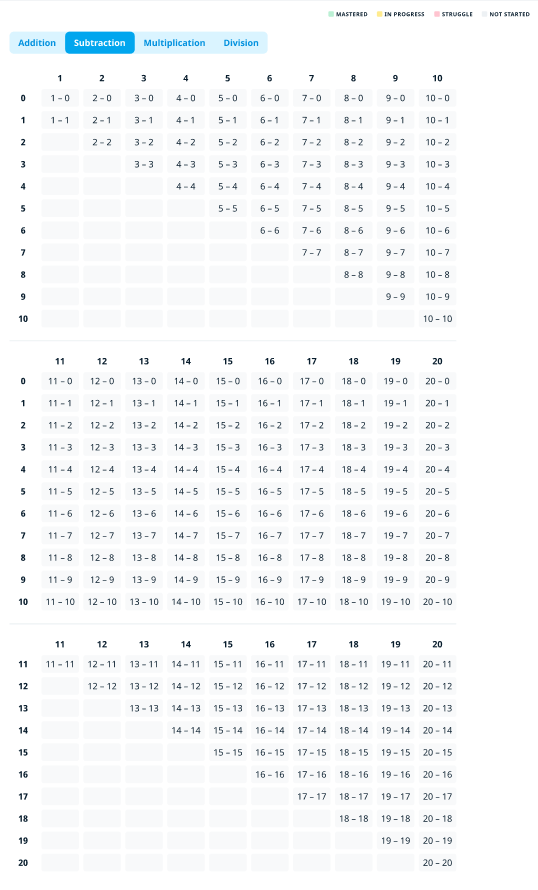
In larger domains (Addition, Subtraction) the tables are split into a few sections.
What kind of data can a teacher get from the tables?
When a student hasn't started a domain yet, the entire table appears gray — every fact is Not Started.
As the student begins working through facts, cells start filling in with color. Every fact in the report is shown in one of four colors:
- Green (Mastered) — This student has this one down. No action needed.
- Yellow (In Progress) — Still building speed and/or accuracy here. This is a normal part of learning — just keep an eye on it.
- Red (Struggle) — This fact needs support. Worth a closer look or some extra practice time.
- Gray (Not Started) — Hasn't gotten to this fact yet. Nothing to worry about at this stage.
Once a section is fully mastered (every fact in it turns green), it automatically moves down to the bottom of the tab, keeping the facts the student still needs to focus on near the top.
In the screenshot below: the top and middle sections of Subtraction are still a mix of in-progress and struggle facts, while the bottom section (facts 1–10) has been fully mastered — which is why it's already moved down, out of the way of what still needs attention.
If a domain contains one or more struggle facts, a small warning icon appears next to that domain's name — so you can spot it at a glance.
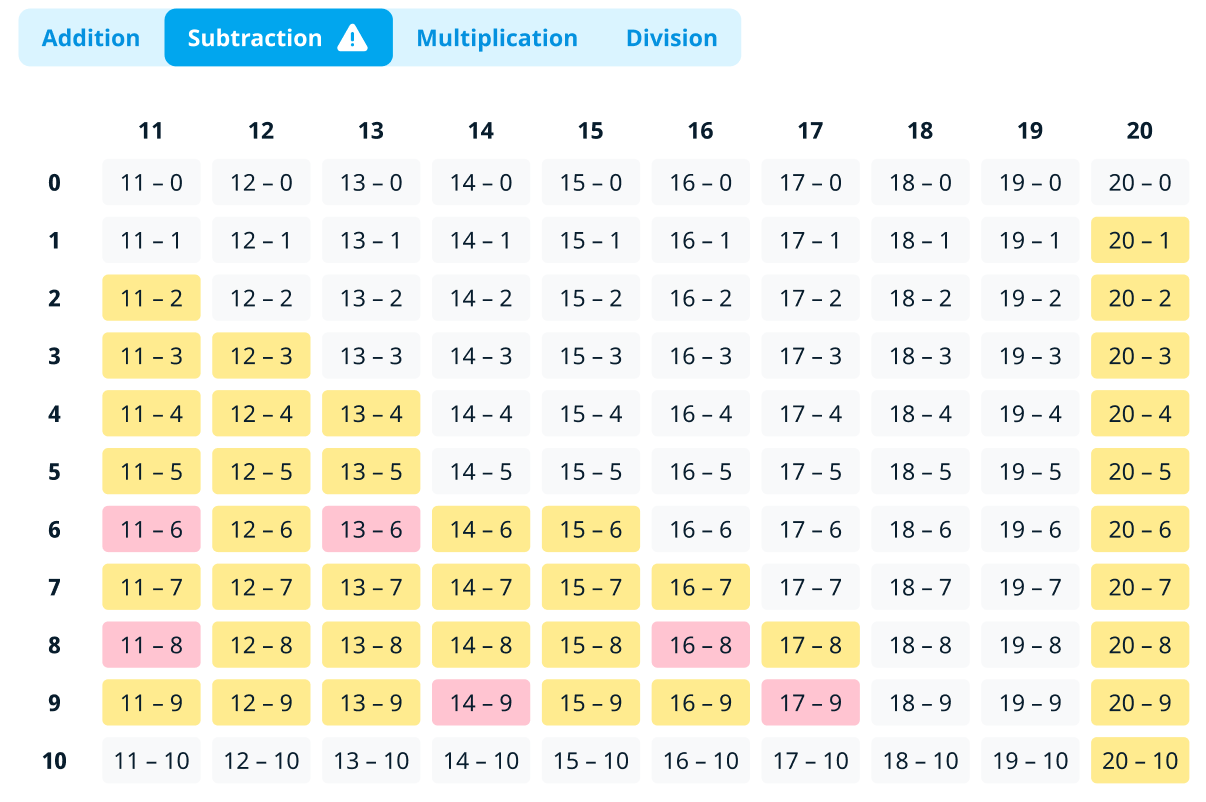
A domain with this icon is the one that opens automatically when you first load the report: it's flagged as needing your attention.
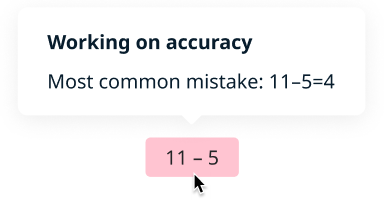
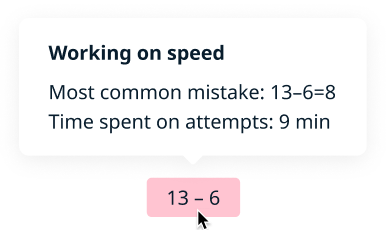
When a fact is marked as a struggle, hovering over it shows a small tooltip explaining why — so you don't have to guess whether it's a speed or an accuracy issue.
There are three versions of this tooltip based on the mode the student is practicing in:
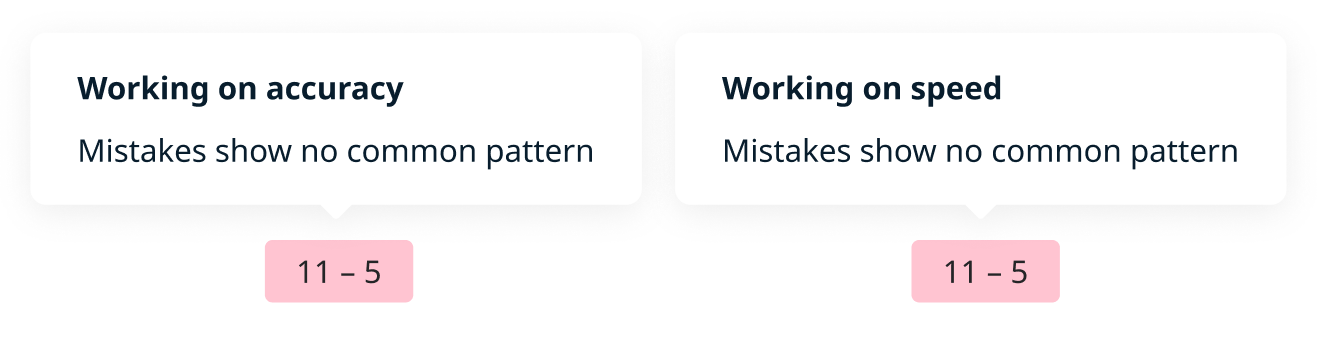
- Working on accuracy — shown when the student struggled while learning the fact (too many wrong attempts before mastering it). The tooltip includes their most common mistake, so you can see exactly what they keep getting wrong.
Working on speed — shown when the student knows the fact but is taking too long to answer it under timed conditions. The tooltip shows both the most common mistake (if there is one) and how much time they've spent on attempts so far.
No clear pattern — sometimes a student's mistakes are all over the place, with no single wrong answer showing up often enough to call out. In that case, the tooltip just lets you know: "Mistakes show no common pattern."
How we decide what counts as the "most common mistake"
Not every wrong answer calls for a tooltip — here's how our algorithm identifies a “most common mistake”:
- Only mistakes the student made 3 or more times are considered. A one-off wrong answer doesn't count as a pattern, so it's filtered out.
- Among the mistakes that happened 3+ times, we show the one that happened most often.
- If two or more mistakes are tied for the most repetitions, we show the most recent one — since that reflects where the student's thinking is right now.
- If no mistake was made 3 or more times, there's no clear pattern to show — that's when you'll see "Mistakes show no common pattern" instead.
Why this is useful: Because the mistake shown has to repeat at least 3 times, you can trust that it's a real pattern worth addressing with the student — not a random slip.
Questions? Contact our Support Team at support@happynumbers.com.