.png)
How do I clear Cache and Cookies?
If you're experiencing any of the following issues, clearing your browser's cache and cookies can often resolve them:
- Login problems
- Blank or frozen pages
- Features not loading correctly
- Unexpected errors while using Happy Numbers
Note: Clearing cookies will sign you out of most websites, so you may need to sign in again afterward.
Google Chrome (Windows & Mac)
- Open Google Chrome
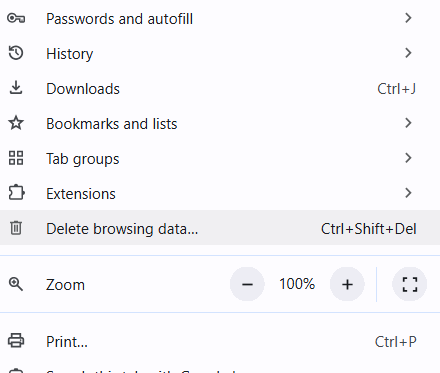
- Click the three-dot menu ( ⋮ ) in the upper-right corner
-
Select "Delete browsing data"
- Set the time range to "All time"
-
Make sure the following options are selected:
- Cookies and other site data
- Cached images and files
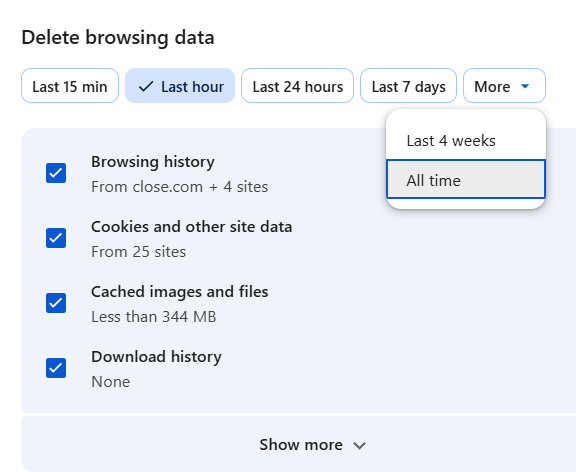
- Click 'Delete data'
- Restart Chrome
- Sign back in to Happy Numbers
Safari (Mac)
- Open Safari
-
Click Safari → Settings, then select the Privacy tab
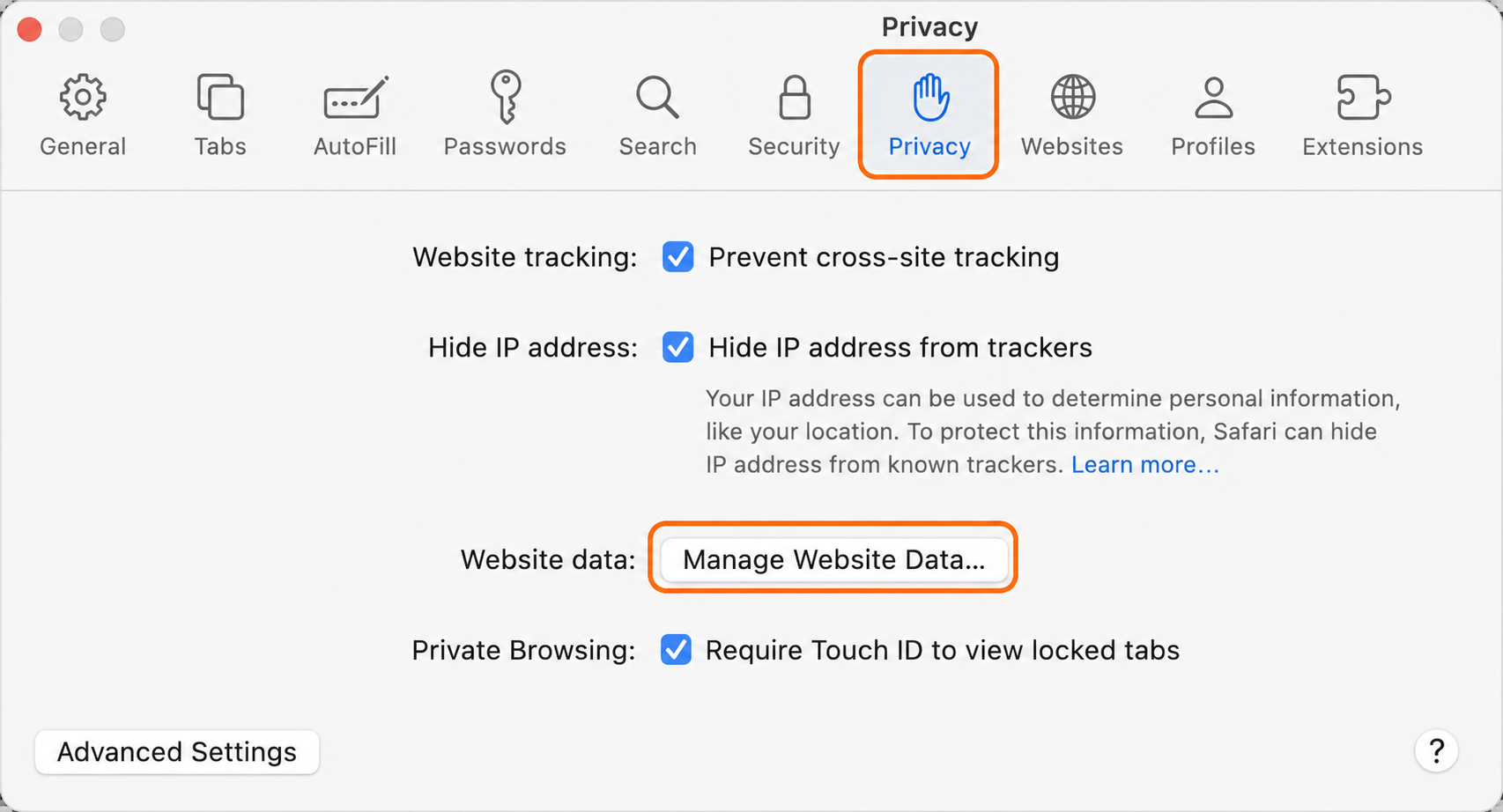
- Click "Manage Website Data"
- Click "Remove All to clear all website data"
- Restart Safari and sign back in to Happy Numbers
Safari (iPhone & iPad)
- Open Settings
- Tap "Apps" and find Safari
-
Tap "Clear History and Website Data"
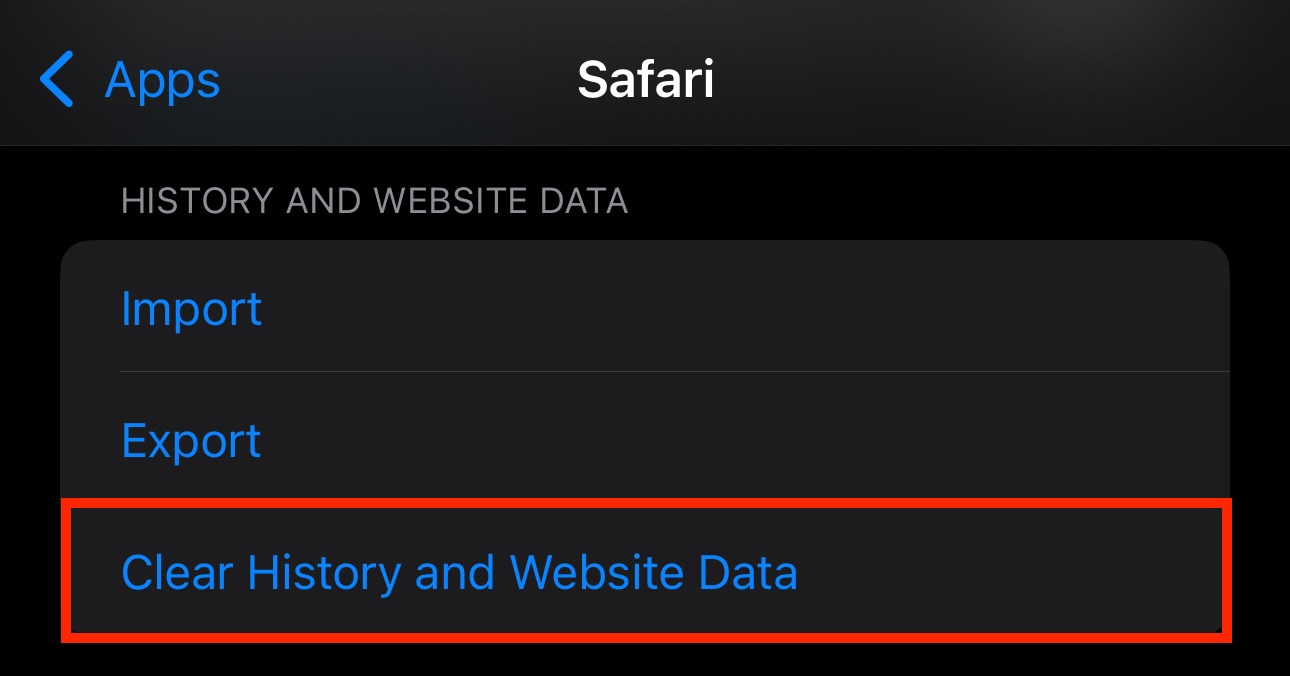
- Choose the desired time range
- Tap "Clear History" to confirm
Google Chrome (Android)
- Open Google Chrome
-
Tap the More menu ( ⋮ )
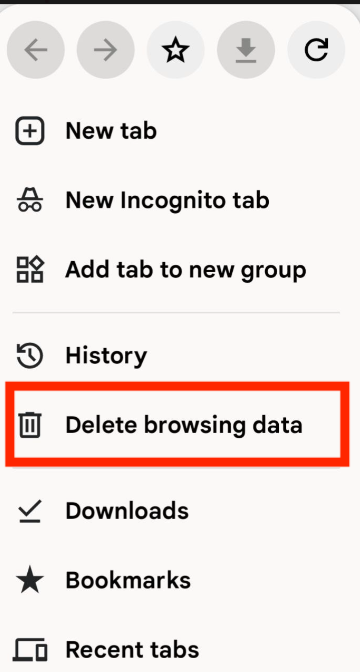
- Select "Delete browsing data"
- Set the time range to "All time"
-
Select:
- Cookies and site data
- Cached images and files
- Tap "Delete data"
- Restart Chrome
- Sign back in to Happy Numbers
Quick Cookie Reset
You can also clear your Happy Numbers cookies only by clicking on the link below: https://happynumbers.com/public/cookies/clear