.png)
How to print Answer Keys for Happy Numbers Printables
You asked, we made it happen: Answer Keys are here! Many of you asked us for answers to our printables, so we added them. Happy Numbers Printables now come with ready-made Answer Keys for every difficulty level, in both English and Spanish. No more solving worksheets yourself before class: just check one box, and the completed pages are added to your PDF.
New to the Printables Library? Start with Happy Numbers Printables to learn how to find and print worksheets.
How to add an Answer Key to your PDF
-
In your teacher's account, go to the Printables section and find the printable pack you need.
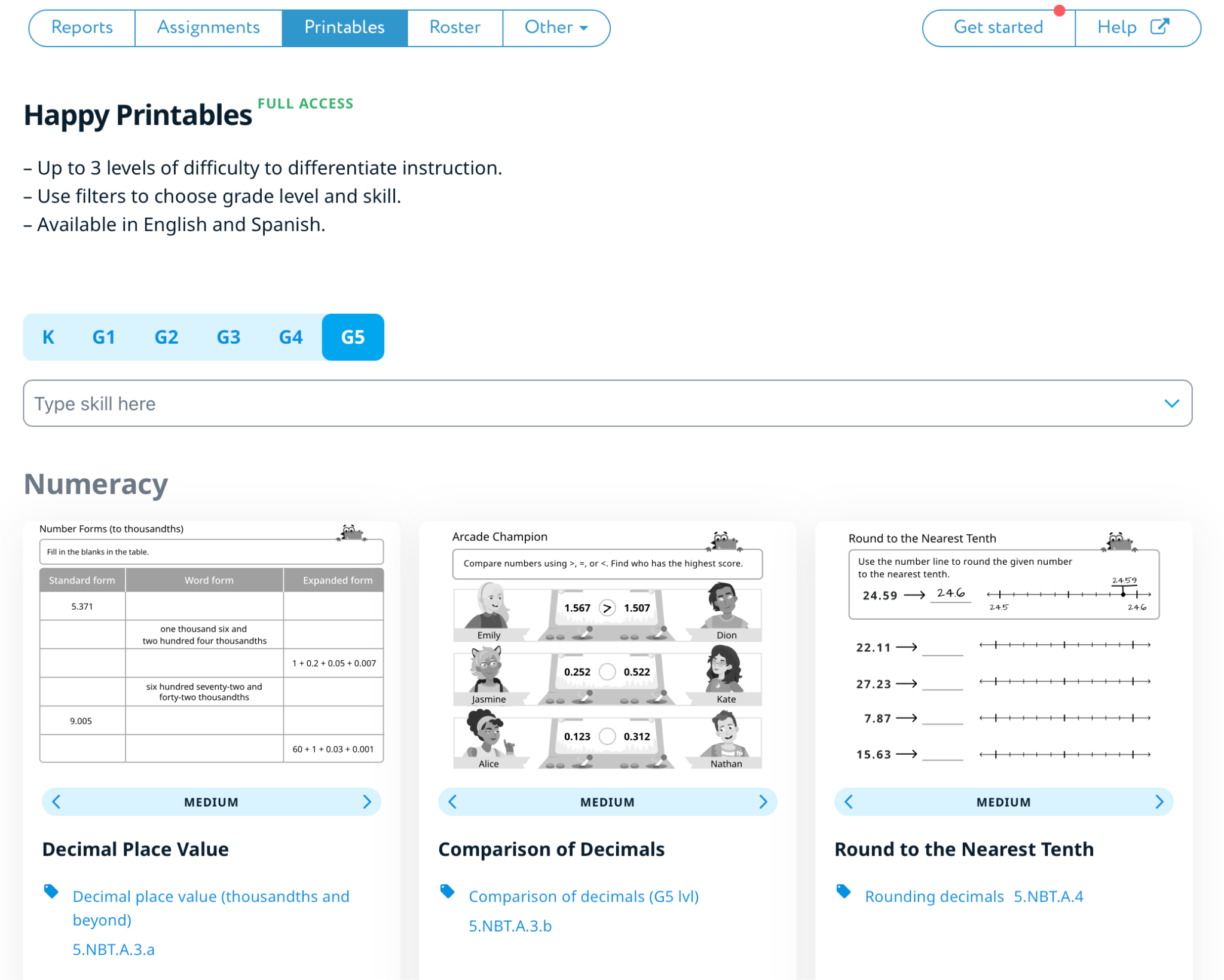
-
Click the name of the printable pack to open the print window. On the left, you'll see a preview of the pack, on the right, the PDF settings.
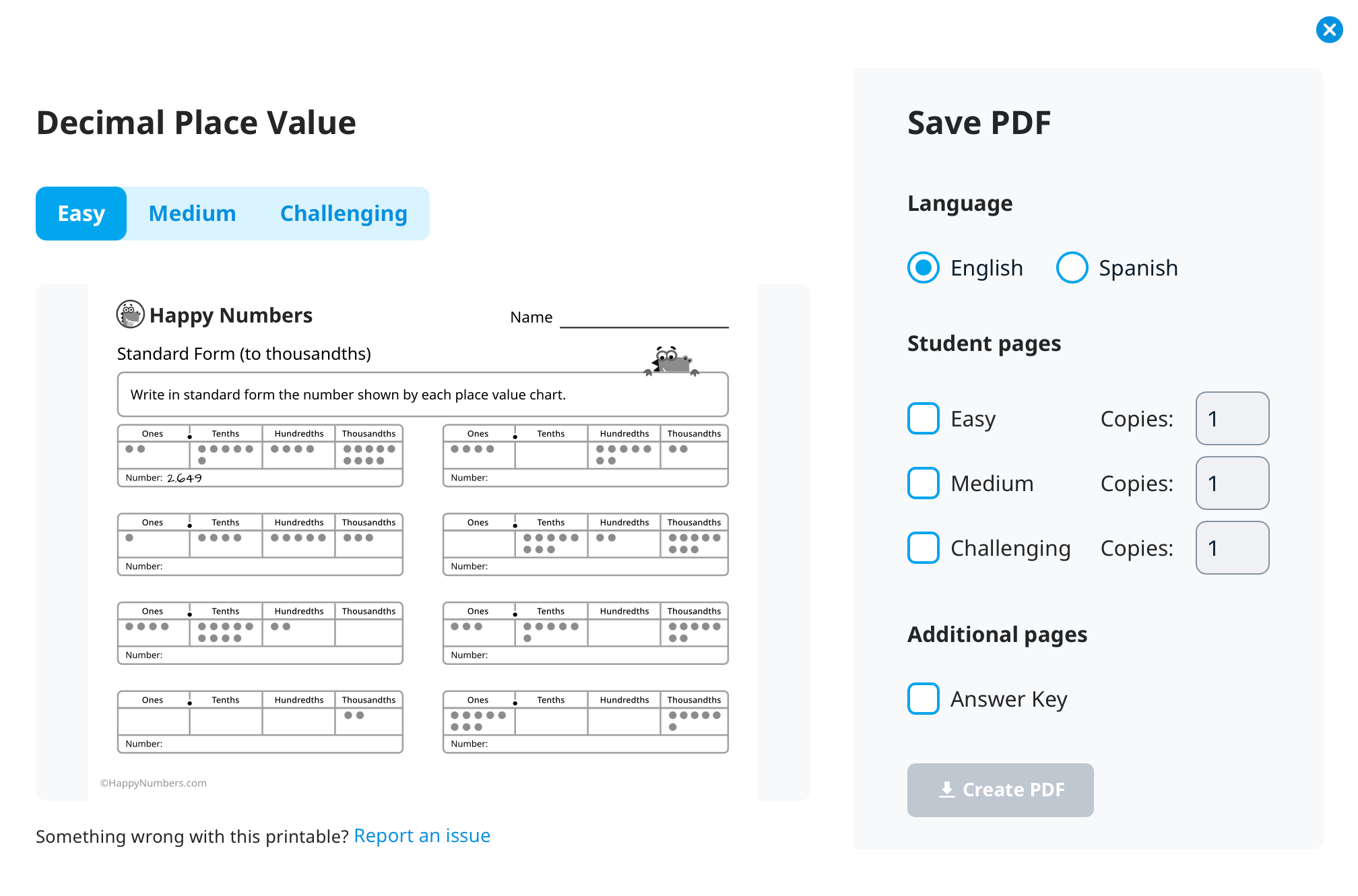
-
In Language, choose English or Spanish. The Answer Key is created in the same language as the student pages.
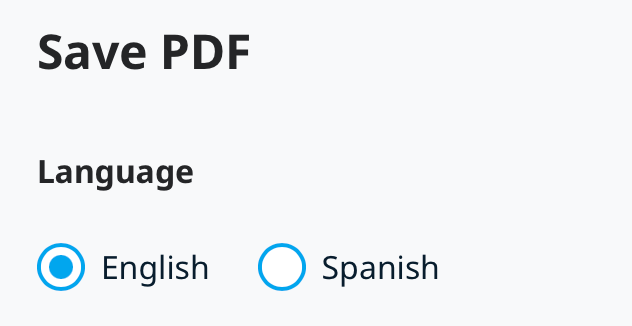
-
In Student pages, check the difficulty levels you want to print (Easy, Medium, Challenging) and set the number of Copies for each.
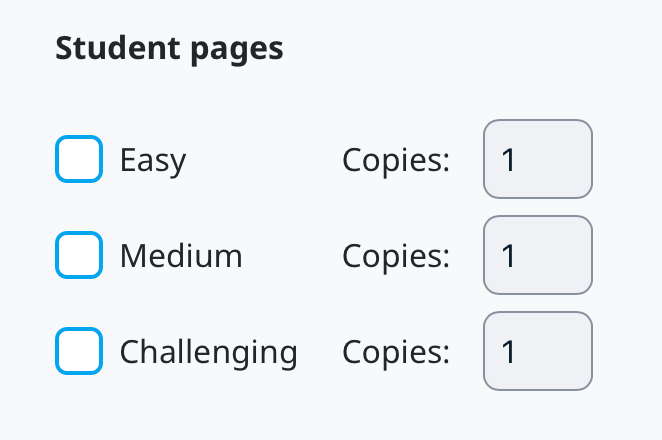
-
In Additional pages, check Answer key.

- Click Create PDF. The file downloads to your computer, ready to print.
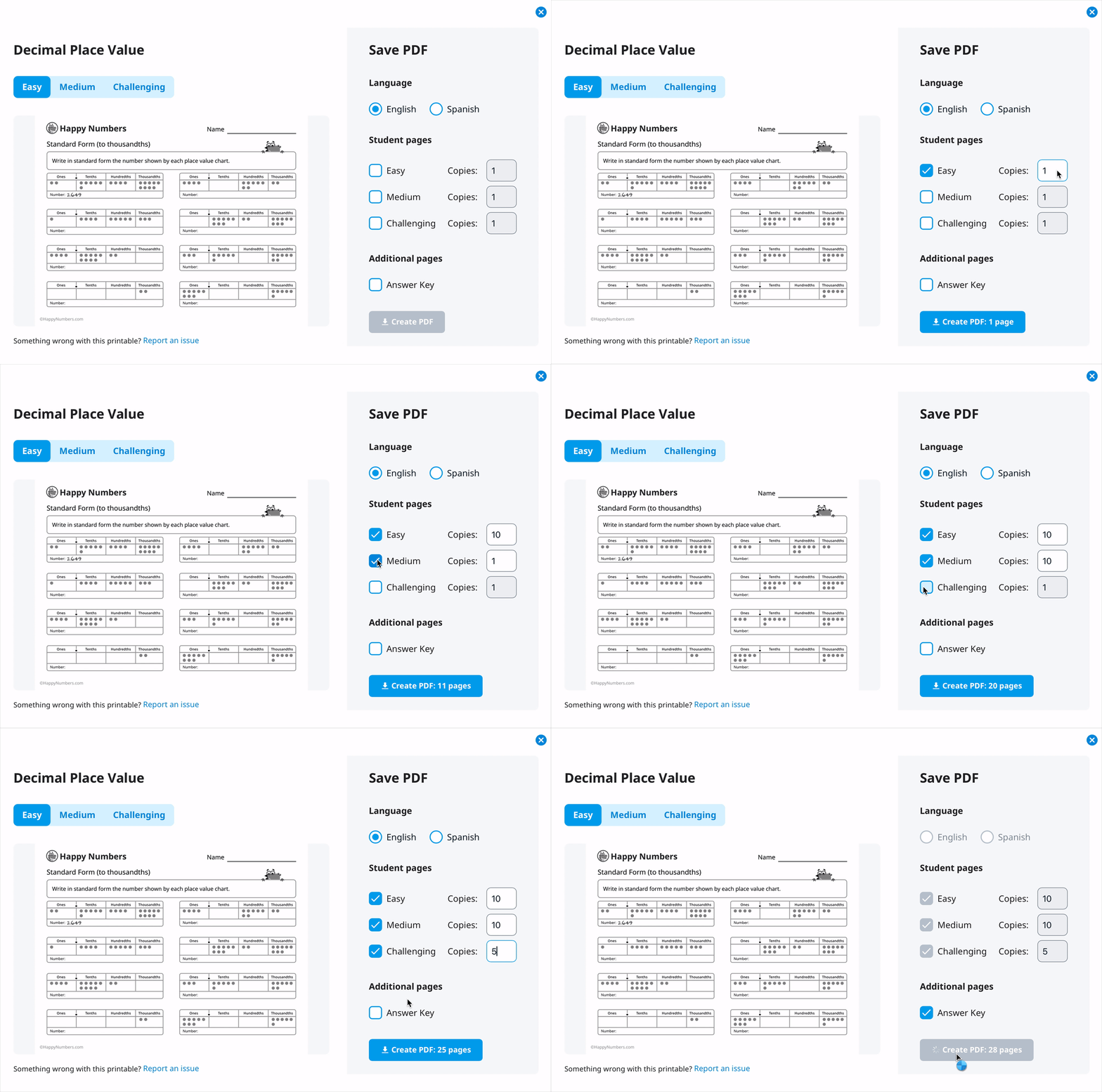
The Answer key box becomes available only after you select at least one level in Student pages. If you uncheck all levels, Answer key is unchecked as well.
You get one answer page set per selected level, no matter how many copies you print. For example, 25 copies of Easy and 15 copies of Challenging come with one Easy Answer Key and one Challenging Answer Key.
What's inside the PDF
Answer Keys always go at the very end of the file, after all student pages. This way you can send the student pages straight to the printer and set the answers aside.
Pages are arranged in the following order:
- Easy: all copies
- Medium: all copies
- Challenging: all copies
- Answer Key: Easy, then Medium, then Challenging
Levels you didn't select are skipped. The Create PDF button shows the total page count, including Answer Key pages, and updates every time you change the settings.
When an Answer Key isn't available
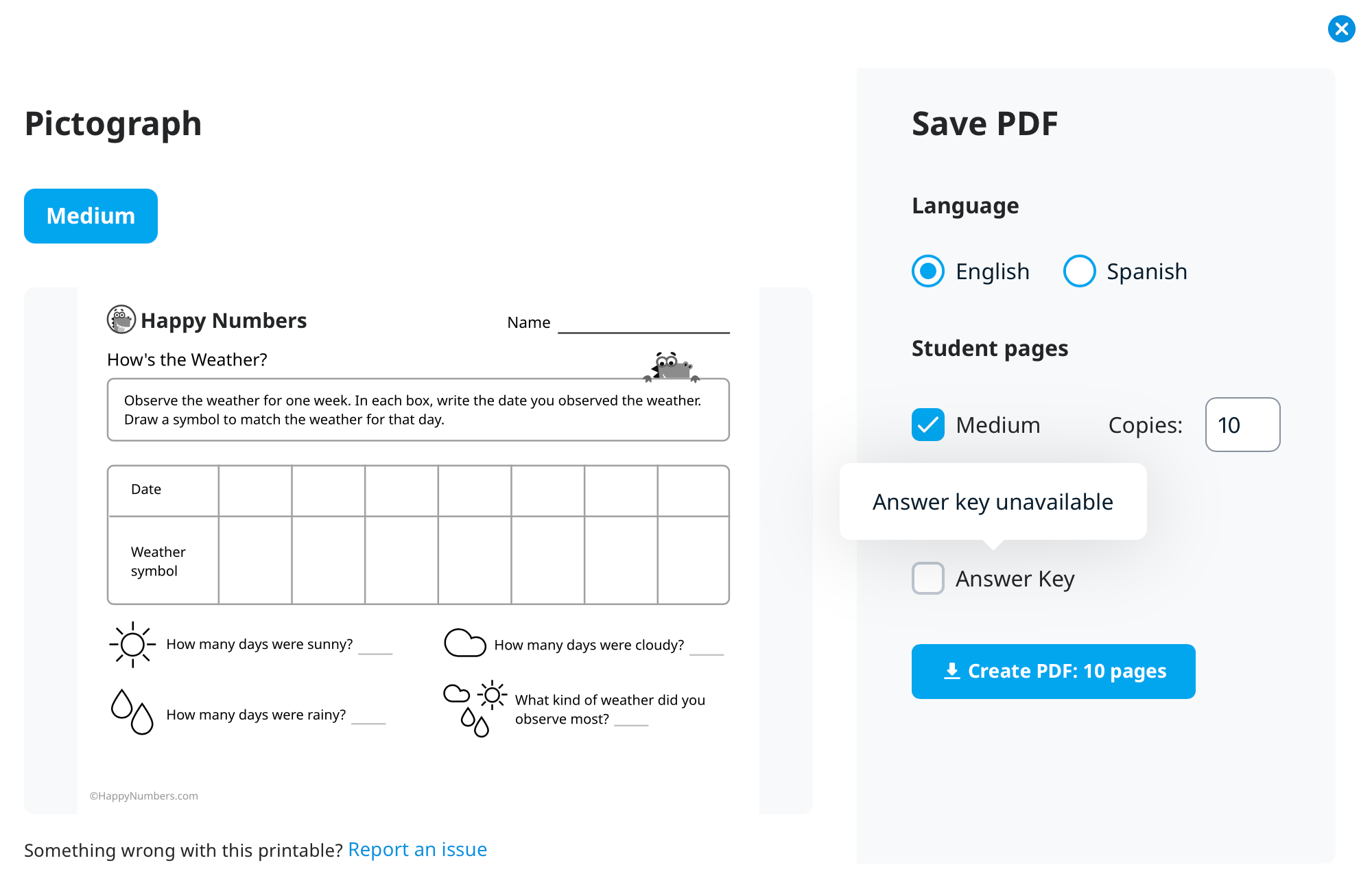
Answer Keys are not provided for some printables, such as games or tasks where every student comes up with their own answer. For these packs, the Answer key box is inactive, and hovering over it shows the message Answer key unavailable.
FAQ
Can I print only the Answer Key, without student pages? Not at the moment. Select at least one level in Student pages first; the Answer Key is added for the levels you choose.
Can I get the Answer Key in Spanish? Yes. Choose Spanish in the Language block, and both the student pages and the Answer Key will be in Spanish.
Will my settings be saved next time? No. Each time you open the print window, the settings reset to their defaults.
Access to the Printables Library is limited if you have a Basic Classroom license. To learn more about the differences between license types and what features are available, please visit this page.